
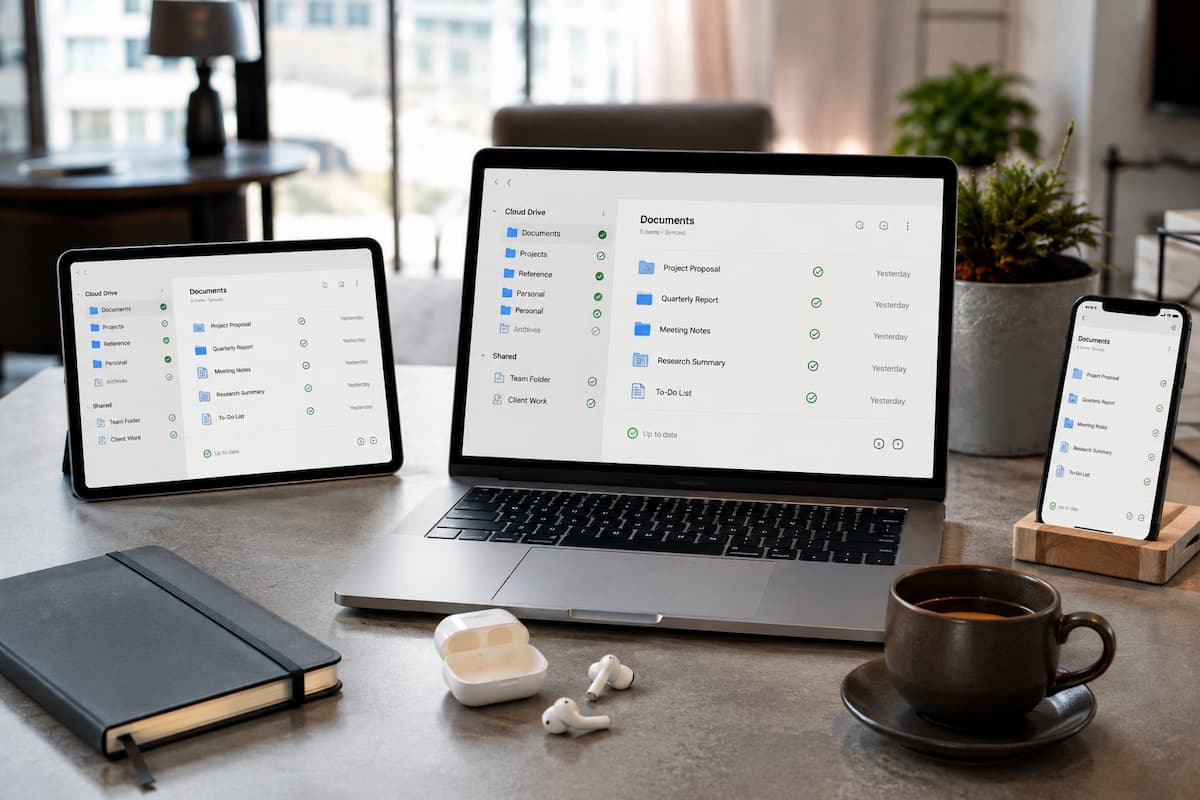
The good news is that version confusion usually isn’t caused by complicated software problems. In most cases, it develops from a few inconsistent habits that slowly grow into a larger organizational issue. Saving files in different locations, renaming documents unpredictably, or forgetting which device contains the latest copy can quickly turn a simple project into a frustrating search. A reliable file management system doesn’t require advanced technical knowledge. It depends on creating routines that work consistently regardless of which device you’re using. Once those habits become part of your daily workflow, you’ll spend less time searching for the right document and more time focusing on the work itself.
Understand Why Version Confusion Happens
Many people assume that modern cloud services automatically solve every synchronization problem. While cloud storage has made file management much easier, it cannot prevent every mistake. The software only works with the information it receives, and inconsistent user habits often create conflicting versions before synchronization even begins.
A common example involves editing a file while one device is temporarily offline. Perhaps you’re working on a laptop during a flight or using a tablet in an area with limited internet access. The document saves locally because the cloud service cannot immediately upload the changes. Later, you edit the same document on another connected device. When the offline device eventually reconnects, the synchronization service discovers that two different versions of the same file exist. Since it cannot determine which edits should replace the other, it often creates duplicate files with names such as “Conflicted Copy” or “Version 2.”
Another frequent cause is downloading the same attachment multiple times from email. Instead of opening the existing document, users save a fresh copy every time they receive an update. Before long, folders contain files with names like “Report,” “Report Final,” “Report Final Updated,” and “Report Final Really Final.” At a glance, none of these names clearly identifies the current version.
Even small differences in where files are stored can create long-term confusion. A presentation might begin inside a cloud folder, get copied to the desktop for quick editing, then be moved into a downloads folder before finally being attached to an email. Weeks later, several nearly identical copies remain scattered across the computer, making it difficult to know which one reflects the latest work. Recognizing these patterns is the first step toward preventing them. Once you understand how duplicate versions appear, it becomes much easier to design habits that avoid them altogether.
Create One Trusted Home for Every File
The simplest way to reduce version confusion is surprisingly straightforward: every important file should have one permanent location where it belongs. Think of this location as the document’s home rather than just another folder. When files move between multiple folders depending on the device you’re using, it’s easy to lose track of which copy should be edited. Instead of saving documents wherever it’s most convenient at the moment, decide on a single master location before you begin working. This could be a dedicated cloud folder for school projects, a work directory that automatically synchronizes across devices, or another clearly organized location that remains consistent throughout the life of the project.
Once you’ve chosen that location, avoid creating additional working copies unless absolutely necessary. If you need to access the document on another device, open the original file from its permanent home instead of downloading another copy. For example, suppose you’re writing a research paper. Rather than saving separate versions on your laptop, desktop, and tablet, store the document inside a synchronized “Research Papers” folder. Every device accesses the same file, reducing the chance that edits become separated into multiple versions. This habit may seem small, but it eliminates one of the biggest sources of organizational problems. When every important document has one official home, you always know where to start looking.
Develop Consistent File Naming Habits
File names serve as quick summaries of your documents. A clear naming system makes it easier to identify the correct version without opening several files just to compare their contents. Many people unintentionally create confusion by renaming files whenever they make small changes. Over time, names become longer rather than more meaningful. Words like “new,” “latest,” “edited,” and “updated” quickly lose their usefulness because each new revision receives another variation of the same description. A better approach is to build file names around information that remains useful over time. Including the project name, document purpose, and date often provides enough context to distinguish files naturally.
Consider these examples:
| Less Helpful | More Helpful |
|---|---|
| Essay Final.docx | History Essay 2026-09-18.docx |
| Budget New.xlsx | Household Budget September 2026.xlsx |
| Presentation Latest.pptx | Marketing Presentation Q3 2026.pptx |
Dates written in the YYYY-MM-DD format have another advantage. Because computers sort files alphabetically, they also appear in chronological order, making it much easier to identify the most recent version without manually checking timestamps. Consistency matters more than choosing a particular naming style. Whether you include dates, project numbers, or descriptive titles, using the same pattern across every device helps your files remain predictable.
Let Synchronization Finish Before Switching Devices
One of the easiest mistakes to make is assuming that synchronization happens instantly. Although many cloud services transfer changes quickly, larger files, slower internet connections, or temporary interruptions can delay the process by several minutes. Switching devices before synchronization finishes increases the likelihood that you’ll open an outdated copy. Imagine editing a large presentation on your laptop just before leaving home. You close the lid immediately after pressing Save and head to campus. Because the laptop entered sleep mode before synchronization completed, the newest slides never reached the cloud. When you later open the presentation on your tablet, you’re looking at yesterday’s version rather than the one you just edited.
Developing a simple routine can prevent this situation. Before closing a device, take a moment to confirm that synchronization has finished successfully. Many cloud storage applications display indicators showing whether files are currently uploading or whether every change has already been saved online. Waiting those extra few seconds often prevents hours of confusion later. This habit becomes even more important when working with large photo collections, video projects, design files, or extensive spreadsheets. These documents naturally require more time to synchronize than ordinary text files, making patience part of an effective file management routine. Another helpful practice is to avoid editing the same document on two devices at the same time. Even when synchronization services handle conflicts well, simultaneous editing increases the chances that duplicate versions will be created automatically.
Keep Temporary Downloads Separate From Your Working Files
Downloads are one of the biggest reasons version confusion develops over time. Every time you download an attachment from an email, save a file from a website, or receive a shared document through a messaging app, your device often stores it in a default Downloads folder. If those files remain there, it’s easy to lose track of which copy you’re actually editing. A better habit is to treat the Downloads folder as a temporary holding area rather than permanent storage. Open the file, decide whether you need to keep it, and then move it into its proper folder before making significant changes. If the document already exists in your organized file system, avoid creating another independent copy unless there’s a specific reason to do so.
This becomes especially important when collaborating with teachers, classmates, or coworkers. Someone may email an updated spreadsheet while you’re still working on yesterday’s version. Instead of saving both files in different locations, compare them first, replace the outdated copy if appropriate, and continue working from the same organized location. Many operating systems allow you to sort downloads by date, making it easier to review recently saved files. Spending a few minutes each week cleaning this folder prevents dozens of forgotten duplicates from accumulating over the course of a semester or project.
Be Careful When Working Offline
Modern cloud storage makes it easy to work almost anywhere, but offline editing requires a little extra attention. When your device isn’t connected to the internet, your changes are stored locally until a connection becomes available again. This works well in most situations, but problems arise if another device edits the same document before synchronization resumes.
Suppose you’re reviewing lecture notes on your tablet during a train ride with no internet access. You reorganize several sections and add important comments. Later that afternoon, you open the same notes on your desktop computer and make additional edits because the tablet hasn’t synchronized yet. When both devices eventually reconnect, the cloud service has two different versions to compare. Depending on the software, it may merge some changes, create duplicate copies, or ask you to choose which version should be kept.
If you know you’ll be working offline for an extended period, try to dedicate one device to that document until synchronization has completed. Finishing your edits before switching devices greatly reduces the chance of conflicting versions. It’s also worth checking that important folders are marked for offline availability before traveling. Many cloud storage services let you choose which files remain accessible without an internet connection. Preparing these folders in advance helps you avoid creating unnecessary copies simply because the original document wasn’t available.
Use Version History Instead of Creating Endless Copies
One reason people save files with names like “Final,” “Final 2,” and “Final Final” is fear of losing earlier work. While understandable, this approach often creates more confusion than protection. Many cloud storage platforms and productivity applications include built-in version history. Rather than storing dozens of manually named copies, these services quietly keep previous revisions behind the scenes. If you accidentally remove important information or need to restore an earlier draft, you can often recover it without cluttering your folders with duplicate files.
This doesn’t mean version history should replace regular backups, but it does reduce the need for manual file duplication during everyday editing. Instead of creating another copy before every small change, rely on the revision tools already provided by your software whenever appropriate. If you’re working on a major milestone—such as submitting a thesis, completing a portfolio, or finalizing a business proposal—it can still make sense to save a clearly labeled archival copy. The difference is that these milestone versions are intentional and meaningful rather than random duplicates created every few hours.
Organize Shared Projects With Clear Rules
Version confusion becomes more complicated when multiple people contribute to the same files. Even if your personal organization habits are excellent, inconsistent collaboration can quickly create duplicate documents and conflicting edits. Before beginning a shared project, agree on a few simple rules. Decide where the master files will live, who is responsible for creating new folders, and whether everyone should edit the same document or work on separate sections before combining them.
For example, a group presentation might include one shared folder containing presentation slides, research notes, images, and reference materials. Instead of emailing updated presentations back and forth, every member edits the shared copy. This reduces the chance that someone accidentally presents an outdated version. Communication matters just as much as technology. If you’re making substantial revisions, let other contributors know. A short message saying that you’re updating the report over the next hour can prevent simultaneous edits that lead to unnecessary conflicts.
Review Your Files Before They Become a Problem
File organization works best when maintained regularly rather than repaired after months of neglect. A brief review every week is usually enough to keep your storage organized without turning maintenance into a major task. During this review, look for duplicate documents, incomplete downloads, empty folders, and files with unclear names. If you notice several copies of what appears to be the same document, compare them while the project is still fresh in your memory. Waiting until the end of the semester often makes it much harder to determine which version contains the latest edits. It’s also a good opportunity to archive completed work. Projects that are no longer active can be moved into an archive folder while preserving their original structure. This keeps your current workspace uncluttered without deleting valuable reference material. Small maintenance sessions are far easier than attempting to organize thousands of files all at once. Just fifteen minutes each week can prevent hours of searching later.
When Conflicts Do Happen, Stay Calm and Investigate
Even with a well-designed workflow, occasional version conflicts are unavoidable. A temporary internet outage, an unexpected software update, or an accidental overwrite can still produce duplicate files. The important thing is not to panic or immediately delete what appears to be an extra copy. Start by comparing the modification dates, file sizes, and document contents. Open both versions and identify which one contains the most recent changes. Sometimes each file includes unique edits, requiring you to combine information before deleting the outdated copy.
If your cloud storage service reports a synchronization conflict, read the notification carefully rather than dismissing it. These messages often explain exactly what happened and may provide options for restoring an earlier version. After resolving the conflict, spend a moment identifying what caused it. Was a device offline? Did synchronization fail? Did someone else edit the same file? Understanding the cause helps prevent the same situation from happening again. The goal isn’t to eliminate every possible conflict. It’s to recover from occasional problems quickly because your overall organization system remains predictable.
Good Organization Is Built Through Consistency
People often search for the perfect app or the newest productivity tool, believing it will solve every file management problem. In reality, the most reliable systems are usually built from simple habits repeated consistently. A single trusted folder, clear file names, regular synchronization, thoughtful backups, and occasional maintenance accomplish far more than a complicated workflow that is difficult to follow. As your collection of documents grows across multiple semesters, jobs, or personal projects, these habits become increasingly valuable. Instead of wondering which laptop contains the newest report or whether the tablet has yesterday’s notes, you’ll know exactly where every important file belongs.
Technology will continue to evolve, introducing new devices and new ways to work. The principles behind good file organization, however, remain remarkably stable. Keeping one reliable source for every document, avoiding unnecessary duplicates, and reviewing your files regularly creates a system that continues working no matter how many devices you use. When an organization becomes part of your routine rather than a task you postpone, version confusion gradually disappears. Finding the right file becomes quick, predictable, and almost effortless.
FAQs
1. Should I keep local copies if I already use cloud storage?
Yes. Many cloud services maintain local copies automatically for faster access, and having an additional backup on external storage provides extra protection against accidental deletion or account issues.
2. How often should I clean duplicate files?
A weekly review is usually enough for most people. If you work on large collaborative projects every day, you may benefit from checking active folders more frequently.
3. Can different operating systems cause version problems?
They can if synchronization settings differ between devices or if files are stored in different locations. Using the same cloud folder structure across all devices helps maintain consistency.
4. Is it safe to rename files after they’ve been synchronized?
Yes, provided you allow synchronization to finish before switching devices. Renaming files while another device is editing the same document may create confusion, so it’s best done when the document is closed everywhere else.
5. What is the easiest habit to start with?
Choose one permanent home for every important file. That single change eliminates many of the situations that lead to duplicate versions and misplaced documents.