
Why Academic References Are Crucial
Academic work is more than just digital files. Every task requires hours of reading, preparation, editing, and reflection. Lost files often contain ideas, research results, and progress. Some works can be recovered, but time cannot. Many students think that data loss only occurs when their computer breaks down. In reality, seemingly insignificant problems occur much more frequently in daily life. Malware can damage important folders, laptop batteries can run out during updates, or documents can be manipulated. Even accidentally spilling water on the keyboard can ruin assignments.
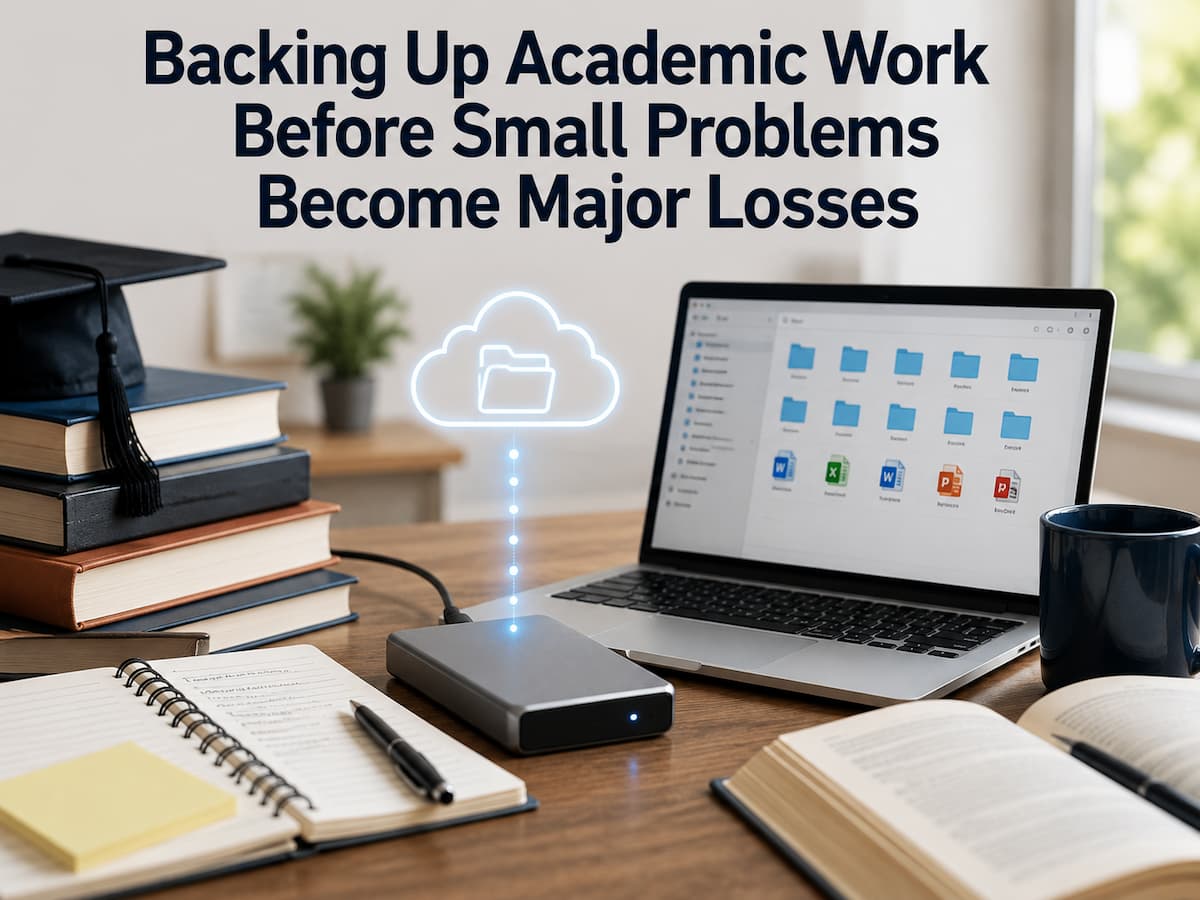
You can reduce these risks by making copies of important files and backing them up regularly. Even if a backup is lost, another copy is always available. Students can revert to the most recent version and continue working. Think of backups as insurance for your studies. You naturally hope you never need them, but you will be incredibly grateful for them if you do.
Common Ways Students Lose Important Files
Understanding how files are lost helps students prepare before problems occur. Surprisingly, everyday mistakes cause most cases of data loss, not dramatic hardware failures.
1. Accidental Deletion
Deleting the wrong folder or emptying the recycle bin too soon can permanently remove assignments that seemed safely stored only moments earlier.
2. Hardware Failure
Hard drives and solid-state drives eventually wear out. Although modern storage devices are reliable, no device lasts forever.
3. Software Problems
Operating system updates, application crashes, or corrupted files can make documents difficult or impossible to open.
4. Lost or Stolen Devices
Students often carry laptops, tablets, and USB drives between classrooms, libraries, and home. A misplaced backpack can instantly revoke access to weeks of coursework.
5. Ransomware and Malware
Malicious software may encrypt or damage files, making them unusable without reliable backups.
6. Human Error
Saving over the wrong version, renaming folders incorrectly, or moving files accidentally can create confusion and result in lost work.
| Problem | Potential Impact | Can a Backup Help? |
|---|---|---|
| Deleted assignment | Lost progress | Yes. |
| Computer failure | No access to files | Yes. |
| Lost laptop | Missing coursework | Yes. |
| Virus infection | Corrupted documents | Yes. |
| Accidental overwrite | The earlier version disappears. | Yes, if version history exists. |
What Academic Files Should Always Be Backed Up
Students sometimes focus only on final assignments while forgetting the supporting materials needed to complete them. A complete backup strategy protects every file that contributes to academic success. Consider including:
- Essays and written assignments
- Research papers
- Presentations
- Lecture notes
- Spreadsheets
- Programming projects
- Design files
- Lab reports
- Images used in coursework
- Recorded lectures where permitted
- Reference PDFs
- Citation databases
- Group project documents
Students working on long-term projects such as dissertations or theses should also back up planning documents, outlines, interview notes, and draft versions. These supporting files are often just as valuable as the finished document. Saving only the final version of an assignment can leave weeks of research unprotected if earlier drafts disappear.
Understanding Different Backup Methods
There is no single backup method that works perfectly for everyone. The safest approach combines multiple methods so that one failure does not affect every copy.
| Backup Method | Advantages | Limitations |
|---|---|---|
| Cloud Storage | Automatic syncing, accessible anywhere | Requires internet for syncing |
| External SSD | Fast and reliable | Must be connected manually |
| External Hard Drive | Large capacity | Can be damaged if dropped |
| USB Drive | Portable and inexpensive | Easy to lose |
| School Storage | Often managed automatically | Depends on institutional policies |
Cloud Storage Versus Local Storage
Students often wonder whether cloud storage alone is enough. While cloud services are extremely useful, relying entirely on one system is often an unsafe option. Likewise, keeping files only on a personal computer creates unnecessary risk if the device becomes unavailable. Cloud storage offers automatic synchronization, seamless collaboration, and access from multiple devices. If you lose or replace a laptop, you can usually download documents stored in the cloud again after signing into your account. Local storage, such as an external drive, works even without an internet connection. It also provides another independent copy that remains available if cloud services experience temporary outages or account access problems.
A Balanced Approach
Many technology professionals recommend following the 3-2-1 backup principle:
- Keep at least three copies of important files.
- Store the copies in two different types of storage.
- Keep one copy in a separate location, such as secure cloud storage.
Best Practice: Combining cloud storage with an external drive provides much stronger protection than relying on either option alone.
Creating a Backup Routine That Actually Works
The best backup system is one that becomes part of your normal study routine instead of something you remember only before major deadlines. Consistency matters far more than complexity. Even a simple habit of saving your work in more than one place at the end of each study session can prevent significant frustration later.
Start by deciding how often your files change. If you work on assignments every day, daily backups make sense. If your coursework involves programming, design projects, or research that changes throughout the day, automatic cloud syncing combined with a scheduled backup to an external drive each week provides an additional layer of protection. A practical routine could look like this:
- Save files regularly while working.
- Allow cloud storage to sync automatically.
- Create a backup to an external drive every weekend.
- Before submitting major assignments, please make an additional backup copy.
- Review your backup folders once each month to remove unnecessary duplicates while keeping important versions.
This type of schedule requires only a few minutes but dramatically lowers the chances of losing valuable academic work.
Keeping Academic Files Organized
A reliable backup system starts with effective organization. If your files are scattered across the desktop, random download folders, and different devices, creating backups becomes confusing. An organized folder structure makes it much easier to find documents, identify the latest version, and restore files if something goes wrong.
Create one main folder for your academic work and divide it into folders for each semester or school year. Within each semester, create separate folders for every subject or course. Finally, organize assignments, notes, presentations, research papers, and supporting materials into their folders. Consistent file names also make a big difference. Instead of using names like “Essay Final” or “Assignment New,” include the course name, project title, and date where appropriate.
Example Folder Structure
Academic Work
│
├── Fall 2026
│   ├── Biology
│   ├── Mathematics
│   ├── English
│   └── Computer Science
│
└── Spring 2027
├── History
├── Physics
└── Economics
For important assignments, consider saving milestone versions instead of constantly replacing one file.
| Less Helpful | More Helpful |
|---|---|
| Essay Final.docx | English_Essay_Draft1.docx |
| Essay Final New.docx | English_Essay_Draft2.docx |
| Essay Latest.docx | English_Essay_Submitted.docx |
Tip: Clear file names make it easier to identify the correct document during stressful submission deadlines.
Common Backup Mistakes to Avoid
Even students who create backups sometimes develop habits that reduce their effectiveness. Recognizing these mistakes early helps build a more dependable system.
1. Keeping Only One Copy
A single copy is never a backup. If that copy becomes unavailable, there is nothing to restore.
2. Depending Only on a USB Drive
USB drives are convenient but are also among the easiest storage devices to lose or damage. They should supplement a backup strategy, not replace one.
3. Ignoring Automatic Sync Errors
Cloud storage applications occasionally stop syncing because of internet interruptions, storage limits, or account issues. Checking synchronization status every so often ensures your files are actually being backed up.
4. Never Testing Restores
A backup is only useful if it can be restored successfully. Occasionally open backup files to verify they are complete and readable.
5. Waiting Until Deadlines
Creating a backup after finishing a major project protects only the final version. Earlier drafts, research notes, and supporting files remain at risk throughout the writing process.
Warning: Never assume automatic backups are working without checking them occasionally.
Checking That Your Backups Really Work
Many people think their files are safe just because they copied them somewhere once. Unfortunately, storage devices can become corrupted, synchronization may fail, and files can occasionally be incomplete. Verifying backups takes only a few minutes and can prevent major disappointment later.
Every few weeks, choose several files from your backup and open them on another device if possible. Confirm that documents display correctly, images load, presentations open, and spreadsheets contain the expected data. If your backup system includes cloud storage with version history, take a moment to review how to recover previous versions before you actually need them. Understanding the recovery process during a calm moment is much easier than learning it just before an important deadline.
Simple Backup Checklist
- Cloud storage is syncing successfully.
- The external drive connects normally.
- Recent files appear in backup folders.
- Documents open correctly.
- Enough storage space remains available.
- Important assignments exist in more than one location.
Protecting Work Across Multiple Devices
Many students switch between laptops, desktop computers, tablets, and smartphones throughout the day. While this flexibility improves productivity, it also increases the chance that you will work with outdated files if you do not synchronize your devices properly. Whenever possible, store active coursework inside folders that automatically synchronize across your devices. This helps ensure that changes made on one device become available on the others. However, avoid editing the same document from multiple devices at the same time unless your software is designed for collaborative editing.
If you regularly work offline, allow enough time for files to finish syncing once an internet connection becomes available. Closing a laptop immediately after making changes may interrupt synchronization. Group projects deserve special attention. Agree with teammates on one shared folder structure, use consistent file names, and avoid creating unnecessary duplicates. Keeping everyone organized reduces confusion and lowers the chance of accidentally deleting important work.
| Device | Recommended Practice |
|---|---|
| Laptop | Primary editing device with automatic cloud syncing. |
| Desktop Computer | Use this device for larger projects, and make sure to verify synchronization before switching to another device. |
| Tablet | Review notes and make light edits while syncing regularly. |
| Smartphone | Use mainly for viewing files or emergency access rather than major editing. |
Building a Long-Term Backup Habit
The most effective backup strategy is based on habit, not memory. When saving and protecting files becomes part of your daily study routine, the entire process runs virtually effortlessly. Students who consistently back up their assignments usually do not have to worry about technical difficulties because they know they have reliable backups. Try linking backups to existing habits. For example, have cloud storage automatically sync after you finish studying, plug in your external hard drive every Friday afternoon, and make extra backups before submitting assignments. Linking backups to existing habits makes maintaining backups throughout the semester much simpler.
As your academic workload increases, your backup strategy must evolve as well. Whether you are taking high school courses, doing bachelor’s research, or pursuing a master’s degree, the same basic principles apply: Organize your files, make multiple copies, check the validity of backups, and never rely on a single storage device. Backup systems only protect files that actually exist. Save regularly while writing, and let your backup program automatically protect those updates.
Conclusion
Backing up academic assignments is one of the simplest ways to protect the time and effort you invest in your studies. Computer failures, accidentally deleted files, lost devices, and software problems can occur unexpectedly, but they do not necessarily lead to a disaster. By organizing your files, creating multiple backups, maintaining a regular backup schedule, and checking your backups periodically, you can significantly reduce the risk of losing important assignments.
Setting up a reliable backup system does not require expensive equipment or advanced technical skills. Developing small, consistent habits is often the most effective. First, set up automatic cloud storage, add external backups, keep your files organized, and incorporate checking backups into your daily study routine. These simple habits can ensure that assignments, research materials, and notes are always available when you need them.
FAQs
1. How often should students back up their assignments?
For most students, automatic cloud synchronization combined with weekly backups to an external storage drive offers reliable protection. If you work on important assignments daily or perform regular revisions, daily backups are even better. The more important the assignment, the more often you should back it up.
2. Is cloud storage alone sufficient to protect assignments?
Cloud storage is very convenient, but it should not be the only backup method. By combining cloud storage with other storage devices, such as external storage drives, you can provide additional protection in the event of issues with network access, account access, or synchronization.
3. Where is the safest place to store research documents?
The safest approach is to store research documents in multiple locations. Keep an active copy in the cloud, keep a copy on your computer, and make regular backups to an external hard drive. This aligns with good backup practices and reduces the risk of losing important work.
4. Can I use a USB stick as the sole backup?
That is not recommended. Although USB sticks are portable and convenient, they are easily lost, damaged, or misplaced. They are best used as an additional backup, not as the sole storage location for academic files.
5. How can I check if my backups are valid?
Open several files in your backup locations every few weeks. Ensure that documents, images, presentations, and spreadsheets open correctly. Furthermore, verify that synchronization with your cloud storage is complete and that there is still sufficient space available on your storage device.
6. Should I save multiple versions of important assignments?
Yes. Keep interim versions of long-running projects so you can restore earlier versions if you make errors or need to roll back changes. Version history is especially useful for theses, research reports, and collaborative projects.
7. What should I do before submitting important assignments?
Make a final backup before submitting the assignment definitively. Make a final backup before submitting the assignment definitively. Please confirm if the correct version has been saved, ensure that synchronization with the cloud is complete, and verify if a copy exists on another storage device. By taking a few extra minutes, you avoid unnecessary stress if technical problems occur later.
References
- National Institute of Standards and Technology (NIST) – Cybersecurity Resources: https://www.nist.gov
- Cybersecurity and Infrastructure Security Agency (CISA): https://www.cisa.gov
- Microsoft Support – Backup and Restore Documentation: https://support.microsoft.com
- Apple Support – Back Up Your Mac: https://support.apple.com
- Google Drive Help Center: https://support.google.com/drive
- Harvard University Information Technology – Data Storage and Backup Resources: https://huit.harvard.edu
- University of Oxford IT Services – Information Security Guidance: https://www.it.ox.ac.u